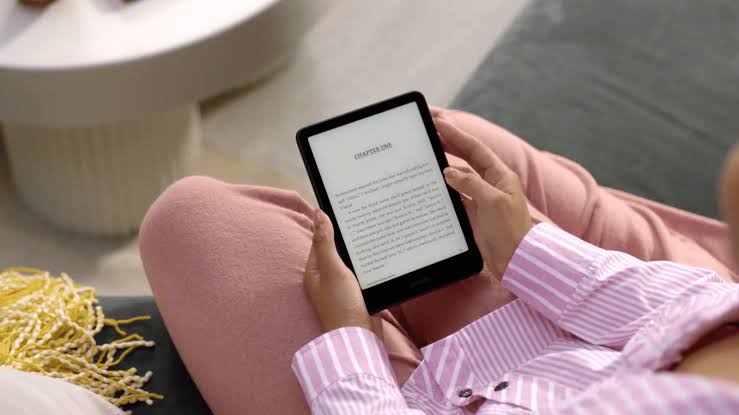
Amazon recently officially ended support for its pioneering first and second-generation Kindle devices. While these «e-ink dinosaurs» are legendary for their physical keyboards and tactile buttons, they are now effectively severed from the Kindle Store and cloud syncing.
But don’t toss your Kindle 1 or Kindle 2 into the e-waste bin just yet. It’s time to break free from the «Amazon claws» and give your hardware a second life through the community at kindlemodding.org.
Why «Liberate» Your Kindle?
When Amazon drops support, your device loses the ability to download new books directly or sync progress. By modding your device, you transition from a closed ecosystem to an open-source powerhouse. Benefits include:
- Custom Readers: Install software like KOReader to support more formats (EPUB, DJVU, etc.).
- File Freedom: Drag and drop books without worrying about DRM or proprietary formats.
- Extended Life: Optimization tweaks that can make these older processors feel a bit snappier.
Phase 1: Preparation
Before you start, you’ll need a few basics. Modding is generally safe, but it requires patience.
- Identify your model: Ensure you have a Kindle 1 (the asymmetrical one with the scroll wheel) or a Kindle 2 (the sleek white one with the joystick).
- Charge it up: Never start a firmware modification with less than 50% battery.
- The Hub: Visit kindlemodding.org. This site serves as the modern repository for the legacy tools originally developed on the MobileRead forums.
Phase 2: The Jailbreak Process
The «Jailbreak» is simply a way to tell the Kindle it’s allowed to run scripts and software not signed by Amazon.
- Download the Jailbreak Package: Locate the specific jailbreak file for your device version on kindlemodding.org.
- Connect via USB: Plug your Kindle into your PC/Mac. It should show up as a USB drive.
- Copy the .bin file: Place the jailbreak file into the root directory (the main folder) of the Kindle.
- Update the Kindle: On your device, go to Menu > Settings > Menu > Update Your Kindle.
- Note: The Kindle will reboot. Don’t panic if it takes a few minutes!
Phase 3: Installing Custom Software
Now that the «gates» are open, you can install the MKK (Mobileread Kindlet Kit) and subsequently, a launcher like KUAL (if supported) or KOReader.
Final Thoughts: Life Beyond the Store
Once you’ve followed the guides on kindlemodding.org, your Kindle is no longer a tethered peripheral—it’s a dedicated, distraction-free reading machine. You can manage your entire library using Calibre on your computer, converting and sending books via USB.
Pro Tip: Older Kindles excel at reading standard TXT and MOBI files. If you’re using KOReader, you can even access your own self-hosted OPDS catalogs (like a personal cloud library).
Don’t let Amazon decide when your hardware is obsolete. Head over to the modding community, grab your USB cable, and take back control of your reading experience.